Monday, 20 June 2011

HTML5 - At first glance

HTML 5

HTML5 is the latest markup technology used to build World Wide Web content. While searching the Internet to learn more about it, I bumped into a lot of examples, animations, games and multimedia content. One of the main advantages of HTML5 is that web developers can create cool and complex animation with few lines of code. In fact, if you try to do some simple HTML5 examples using the current HTML, most probably you will give up at start up.
Will not stress out how important it is to including multimedia objects in our web pages, I think everyone is aware that promoting and marketing goods in an attractive fashion is important. And amongst others, HTML5 was designed for multimedia and animation. In fact, many developers are questioning if HTML5 will replace Flash; I recommend reading some blogs on this matter.

What’s new

In this section, I will describe some new HTML5 features that I tried using Google Chrome.


>> In HTML5, the lengthy and difficult to remember Document type declaration has been simplified in the following lines:
<!DOCTYPE html>
As a matter of fact, HTML5 does not need a document type declaration to work and such declaration is only used by older browsers: that require doctype declaration.


>> Image captions are used with screenshots and figures to provide more information and to ease referencing. In HTML5 you can easily add a caption to an image by adding the figcaption tag as follows:
<figure>
     <img src="image path" alt="about image"/>
     <figcaption>
     <p>This is the image caption</p>
     </figcaption>
</figure>


>> When linking to CSS stylesheet, or including a Javascript file in an HTML5 page, the file type can be omitted. HTML5 identifies the file type by processing the file extension.
<link rel="stylesheet" href="CSS path" />
<script src="Javascript path"></script>


>> The contenteditable attribute is used to make a list or a block of text editable. When enabled, this attribute allows users to edit and change the contents of lists and blocks of text. The following is an example:
<ul contenteditable="true">
<li> Create Second life blog </li>
<li> Create HTML5 blog </li>
<li> Start course work 2 </li>
</ul>


>> Email type, is a new attribute of the input field that enables email validation. Without using Javascript and regular expressions, HTML5 can validate an email address with a few lines of code:
<form action="" method="get">
<label for="email">Email:</label>
<input id="email" name="email" type="email" />
<button type="submit"> Submit Form </button>
</form>
When an invalid email is entered, a message is displayed as follows:

>> Using the placeholder attribute, HTML5 enables you to add place holder text in input objects.
<input id="email" name="email" type="email" placeholder="<youremail>@inbox.com"/>

>> The required attribute enables you to specify that an input field is required. No Javascripts and validation is required, just adding the attribute to the input box as follows:
     <input type="text" name="userName" required="required">

>> The new mark tag enables you to highlight specific text in a paragraph.
     <p> My course title is <mark>Client Server Applications</mark></p>


>> With DOM and HTML, in HTML5, developers can easily embed videos, animations and audio.


>> Having a temporary SQL-based database API, in HTML5 developers can store data on the client side. This can be used to store structure data, temporary information, e-mails and shopping details.


>> HTML5 provides a solution that enables developers to store information in the browser’s cache. This enables clients to launch information when offline and load pages faster when online.

Useful links and further information

http://html5test.com/ - This page provides the required tools to test your browser for HTML5 compatibility.
http://diveintohtml5.org/ - A free online book, describing some of the features in HTML5.
http://www.w3schools.com/html5/default.asp - W3C school HTML5 reference, here you can learn more and try the online tutorials.

Conclusion

The features described in this blog are a small part of the HTML5 capabilities. Lot of features and structure improvements are implemented in HTML5 that hopefully I will try in the future. 
I was very impressed with the real time animation and the high quality graphics that can be achieved using HTML5; I think these will impact a bit the popularity of existing animation software like Flash.

Happy scripting...

Thursday, 9 June 2011

Second Life - My Last blog

Introduction

My last blog was about sending emails and receiving Notecards. In this week's blog I will try to describe how prims can be configured to receive and forward Notecards and receive emails.

Creating a post box system

A Post Box is an object that enables users to drop/post Notecards. In addition, the Post Box system must enable the Owner to collect, read and manage posted Notecards. To achieve this requirements, I created an object that enables Second Life residents to drag and drop Notecards to it and display the collected Notecards when touched by the owner. The following image shows the object:
The first thing that need to be done is to allow users to drag and drop Notecards into my Post Box. To allow drag and drop, I added the following syntax in the state_entry() event:
llAllowInventoryDrop(TRUE);
When this is enabled, dropped objects are added to the Post Box inventory.
To add some animation to my Post Box, I added the following script that is triggered when an object is dropped on the Post Box.
This simple animation will make the Post Box jump three times in the same location when an Notecard is dropped.
Line 12 checks two actions; If an object was dropped on the prim, or if the inventory list has changed. When one of these conditions is met, the script in lines 14 to 27 is executed.
In line 15, the Post Box location is stored in a vector using llGetPos(). The movement is stored in line 16 in a variable (move). Line 17 stores the loop pointer.
Using a for loop, lines 22 and 23 will move the object vertically 3 times. When the animation is complete, using llOwnerSay(string message), a notification is sent to the owner.
To test my script, I dropped two Notecards in my Post Box and checked my Post Box Contents. The Notecards where there...
The next step is to send the received Notecards to their owner. To achieve this, I added the folowing script in the touch_start() event; this event is triggered whenever an avatar touches my Post Box.
In line 24, the Owner UUID is stored in a key variable (OwnerKey). In line 38 the llDetectedKey(0) is used to get the UUID key of the avatar touching the prim; this is compared with the Owner UUID stored in OwnerKey.
If the Owner is touching the prim, using a for loop and llGiveInventory(key avatar ID, string Object name), all Notecards are forwarded to the owner. Within the loop, the following functions are used: 
  • llGetInventoryNumber(INVENTORY_NOTECARD) – This function is used to get the total number of Notecards in the inventory.
  • llGetInventoryName(INVENTORY_NOTECARD, integer index) – This function is used to get the name of a specific Notecards, at index.
When I touch the Post Box, the Second Live viewer will launch the following dialog for each Notecard:

Receiving emails

In my last blog, I described how to create an object that can send emails using the llEmail(string email address, string subject, string message). The next step is to enable a prim to receive emails.
First I created a simple prim and using llEmail() function, I sent an email to my inbox to determine the prim email address (<primid>@lsl.secondlife.com).
In the state_entry() event I added the following:
llSetTimerEvent(5,0);
This function will trigger the timer event every 5 seconds. In the timer event, I added the following code:
timer(){
llGetNextEmail(“”,””);
}
The llGetNextEmail(string address, string subject) function, will retrieve the first queued email message from address mail box with subject as the email subject. In this case, since the parameters are omitted, the function will return all emails.
The email() event is triggered when a new email is received. To display the message contents I added the following in the email() event:
Within the email() event, one can access the following parameters:
  • time – the email message time
  • address – the email message sender email
  • subject – the email subject
  • message – the email body
  • num_left – number of emails left in the mail box
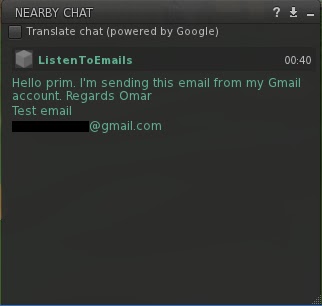
In lines 17 to 19, using the llSay() function, the message, subject and address are being displayed. The following is an example:

Conclusion

Using emails and LSL, one can further enhance a prim to receive instructions via email. This means that a prim can be configured to receive instructions by emails, parse the contents and action accordingly. Sounds cool...
One can also enhance the Post Box system to convert Notecards to emails and forward them to the object owner.
Many technologies exist within second life, and hopefully I will try to experience them in the near future. For now, this is my last blog on Second Life cause I need to move on with other topics and technologies.
Good luck with Second Life....

Tuesday, 7 June 2011

Second Life - Emails,web pages and Notecard givers

Introduction

Linden Scripting, enables residents to make use of existing web technologies. And amongst others, residents can create objects that communicate with the Internet, display web pages and send emails. In addition, residents can embed information in Notecards and share these with other residents.
Using some examples, in this blog I will describe how to send an email, launch a web page and give a Notecard to an avatar using Linden Scripting.

Emails and Web pages

The aim of this task is to create an object that can send an email and launch an Internet web page. To achieve this, using some prims, I created a chair that when touched a web page is launched in the client Internet browser. In addition,when an avatar sits on the chair, an email is send to my Gmail mailbox.
To start with, I created the chair and ensured that avatars can sit correctly without using scripting.
In Linden Scripting, the llLoadURL() function is used to launch a web page in an external Internet browser. This function is used as follows:
llLoadURL(key avatar, string message, string url);
To instruct the chair to launch a web page when touched, I used the following script:
The llDetectedKey(0) function in line 12, returns the UUID key of the avatar and stores the value in a variable. Line 13, launches a Wikipedia page and displays the message “About chairs”.
When the chair is touched, the Second Live Viewer will launch the following dialog:
In Linden Scripting to send an email, the llEmail() function is used as follows:
llEmail(string email address, string subject, string message);
Sending an email is not difficult, the tricky part in this task is how to send an email when an avatar sits on the chair.
The solution is simple. Avatars and prims are all objects of the same kind, when an avatar sits on a target prim, the avatar is linked to the target prim. So to make it simpler, if I count the number of prims when the chair is empty, the result will be 4 (the chair is made up of 4 objects). If I count the number of prims when someone is sitting on my chair, the result will be 5 (4 objects plus the avatar).
To send the email, I used the changed() event handler. Amongst others, this event is triggered when the number of prims changes. The event handler change parameter is a bit-field, and contains information on what type of change has been performed. Amongst others this bit-field can indicate when:
  • An object is added, removed from your inventory
  • An object change color
  • The number of linked objects change
For a full list, refer to changed event.
The email address of the recipient is stored in a variable in line 18. The if statement in line 21 checks if the bit-field is CHANGED_LINK. In line 23, llGetNumberOfPrims() is used to get the total number of prims.
If the total number of prims is 5, then an avatar has sit on the chair; script lines 27 and 28 are executed.
In line 27, the last linked object name within the group (the avatar) is stored in a variable using the llGetLinkName(integer index); this will be used in the email body. The email is send in line 28, and the email is as follows:
Note, the email header contains information on the Region, and the region Local-Position. This enables the recipient to identify from which area the object is sending the email.

Notecards and Givers

In Second Life, Notecards are inventory items that contain plain text or embedded items. A typical example when such notes are used is when land owners wish to provide visitors with further information related to their land.
The aim of this task is to create a Notecard giver.
To create a new Notecard and embed the Notecard to an object:
1. From My Inventory, right click the Notecards folder and select New Notecard. A new Notecard is added in the Notecards folder.
2. Provide a name for the new Notecard and fill in the description and the contents. For example, my Notecard looks something like the following:
3. Create an object and add a new script. For this task, I added a simple bench where an avatar can sit.
4. Open the object building tool bar and select the Content tab. Drag and drop the Notecard into the contents folder. Your building tool bar should look as follows:
In this example, the Notecard is given when an avatar touches the bench. To achieve this, I added the following code to the default state:
The llGetInventoryName() is used to retrieve the Notecard name. Every inventory object has an index, having the first object with an index of 0. Line 9 is retrieving the name of the first Notecard from the inventory. Line 10, gets the avatar key, this will be used as our Notecard recipient.
In line 13, using llGiveInventory(key avatar, string object name), the Notecard is given to the detected avatar.
When the bench is clicked/touched, the following dialog will notify the avatar that a Notecard is being offered and enables the user to Keep/Decline or Block the Notecard.
When accepting a Notecard, the Notecard is added to your Notecard folder in the MyInventory section.

Conclusion

While researching for the right functions to use, I bumped into some forums that stated that in Second Life, sending emails are usually used as sensors. This means that object owners use email technologies to be notified when their objects have been touched or changed (similar to an alarm).
On the other hand, Notecards and external web pages are usually used to provide more information to a visitor/residents.
Happy Teleporting...